Overview
Hello there.
In this blog post I will go through how I set up the overall system: which operating systems I chose and what I did to make it all work. I will try to show why I made certain choices and which conditions I set for myself. I could of course be wrong in some of my assumptions; if I am, please send me an email about it. My email is on my CV page.
As I also said on the homelab project page, the conditions for my build are that I want to keep my system secure and easy to manage, so I can easily see what is going on. For hardware, I am using the hardware from my previous post about my hardware choices.
Now then, I will start with some terminology. Some of my friends read these posts and they do not have a background in operating systems, so I will briefly explain some terms. If you already know this stuff, you can skip ahead to the My Choices part.
Terminology and Information
This part isn’t only an introduction to how it all works; it’s also a bit for myself, to recheck what I actually know. While writing it, I noticed I was clearing some fog along the way, because I had to try and explain it. Okay, whatever, I’m making this blog post sound like a diary with my weird monologue. I will try to keep this as light on detail and as untechnical as I can.
So first off, what is an operating system? To keep it basic: it is the software that operates and manages your hardware.
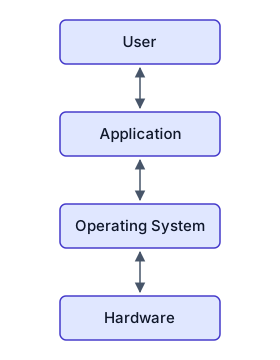 The OS sits between applications and hardware.
It sits between your running applications and your hardware. It schedules tasks, manages memory, and a lot more. Now, what if, for example, I am running an application like Firefox and I click on a suspicious link? The link downloads a weird application onto my computer, I am stupid enough to start it, and boom, I’ve got a virus on my system. This virus can then use the OS to attack the hardware (for example by encrypting files on my disks) or attack other applications on the system. There are many things that can stop this from affecting my PC, such as virtualisation, privileges…
For this post, we will zoom in on virtualisation. What is virtualisation? Well, you can see it as a kind of gaslighting: you make certain processes think they have full access to certain resources, but in reality they are limited.
For example, say you have a troublesome child who does not want to share his cake with others and will start crying if you make him. You give the child a piece of the cake but make him believe he has the whole cake, and in secret you give the other children a piece as well, without the troublesome child knowing about it. This is what virtualisation does to applications, but instead of cake, it could be memory: you tell a program it has access to a part of the memory, while the process thinks it has all of it. This is a basic explanation; I would suggest reading Operating Systems: Three Easy Pieces1 for a much better insight into the actual details, as I am simplifying some things.
But let’s continue. In reality, this kind of virtual memory is already used for every single process, so everything is kind of kept in its own sandbox. But that is not enough: it only protects the memory (RAM). We need other layers of virtualisation to protect the other parts as well. This is where containers and virtual machines come in.
What are containers and virtual machines? They may seem similar and often run side by side, but they solve problems in very different ways. To understand the difference, let’s look at real estate: think of virtual machines as standalone houses and containers as apartment buildings.
Virtual Machines (The Standalone Houses)
A virtual machine (VM) is like a completely independent house. It has its own foundation, its own plumbing and its own electrical grid.
In computer terms, this means each VM runs its own, completely separate guest operating system. A piece of software called a hypervisor sits on your hardware and divides up your physical CPU, RAM and storage, handing dedicated chunks to each VM. Because VMs are separated at the hardware level, they offer a fantastic security boundary. If an attacker compromises one VM, it is extremely difficult for them to break out and affect the host or other VMs. However, booting a brand-new operating system for every single application is heavy and consumes a lot of system resources.2
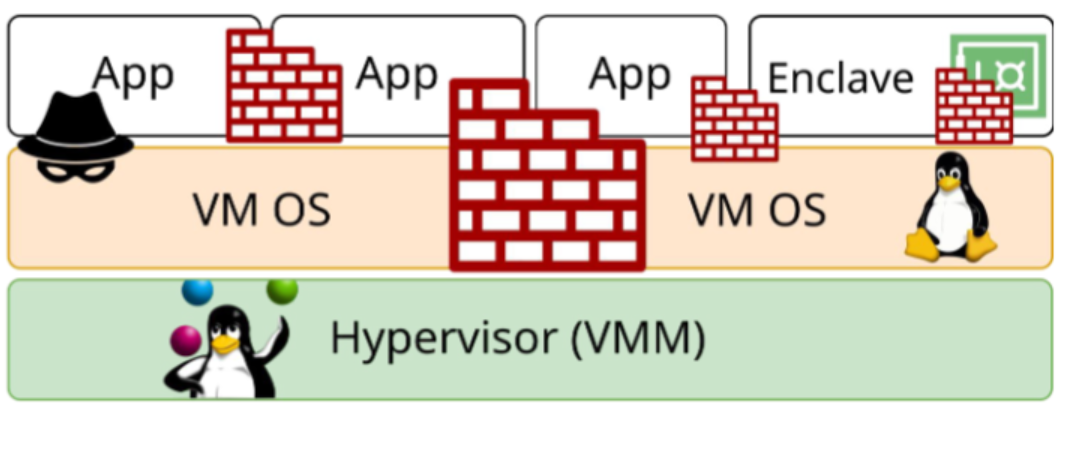 Virtual machines on a hypervisor. Source: slides by Jo Van Bulck, vanbulck.net.
Containers (The Apartment Building)
A container is more like a single apartment in a large high-rise building. All the apartments share the exact same foundation, plumbing and electricity (the host OS kernel).
Instead of virtualising the hardware, containers virtualise the software layers above the OS. They package your application together with all the specific files and libraries it needs to run, keeping it isolated inside its own “walls”. Because they don’t need to boot a full operating system, containers are incredibly lightweight, fast and efficient. However, because they share the same underlying host kernel, the security boundary is weaker than a VM’s. If a hacker finds a fundamental flaw in the building’s shared plumbing (the kernel), every apartment could potentially be at risk.3
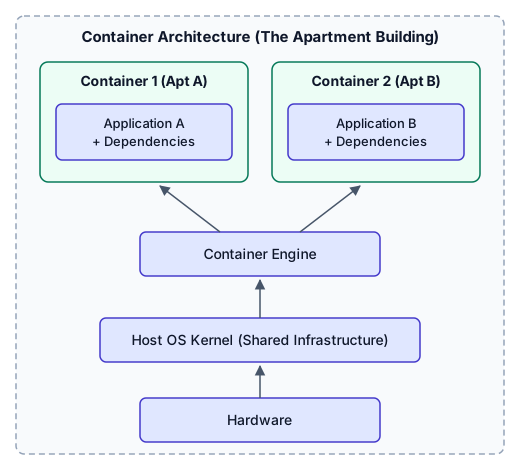 All containers share the same host OS kernel.
Once you understand this difference, you can see why we use both in a homelab: VMs to create strong, secure boundaries for core services, and containers to efficiently run dozens of lightweight applications inside those boundaries!
Now that I have tried to explain these terms, let’s talk about my actual server setup.
My Choices
The Foundation: Why Proxmox?
I chose Proxmox Virtual Environment (PVE) as my base operating system. Proxmox is a Type-1 hypervisor, meaning it runs directly on the bare metal of my hardware rather than on top of another operating system. I chose it because it is open source, incredibly stable, and has a web interface that makes spinning up, backing up and monitoring virtual machines easy.
My plan is to run three VMs in total, but for now I have started with the two most critical pieces of my homelab: a dedicated storage server and an application server. The third will be an ELK stack, which I’m still tinkering with.
VM 1: TrueNAS SCALE (The Storage Backend)
For my storage, I set up a VM running TrueNAS SCALE.4 TrueNAS is the industry standard for DIY network-attached storage, and I chose it mainly for its native support for ZFS. ZFS is a robust file system with built-in data protection, bit-rot prevention and easy snapshots, which keeps my data safe.
Resource Allocation
CPU: I initially gave it 4 cores, but after watching the dashboard, I noticed TrueNAS barely uses any CPU for my workload. I lowered it to 2 cores, and it runs flawlessly.
RAM: I gave it 16GB of RAM. ZFS uses something called ARC (Adaptive Replacement Cache), which keeps your most frequently accessed data in RAM to speed up reads, which is why I gave it that much. I will probably give it more in the future, but so far I haven’t noticed any issues with this amount.
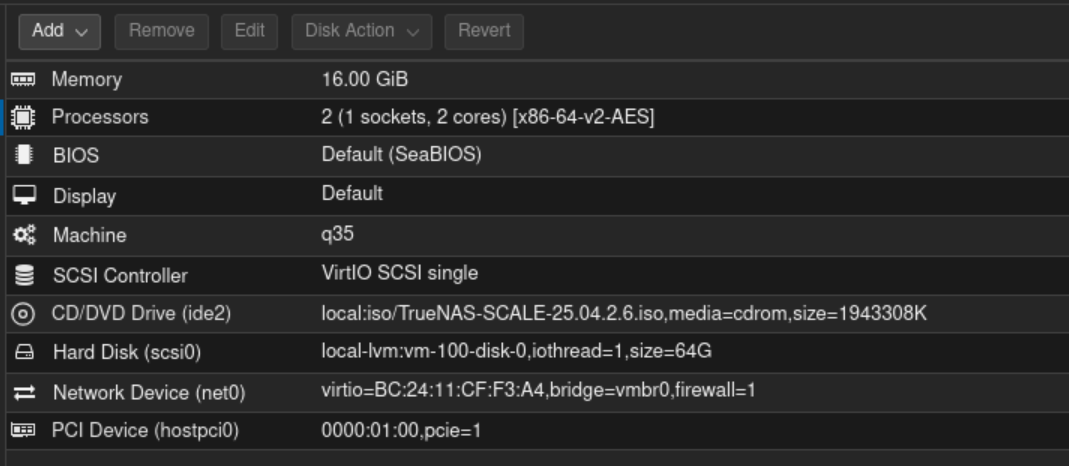 TrueNAS SCALE VM configuration in Proxmox.
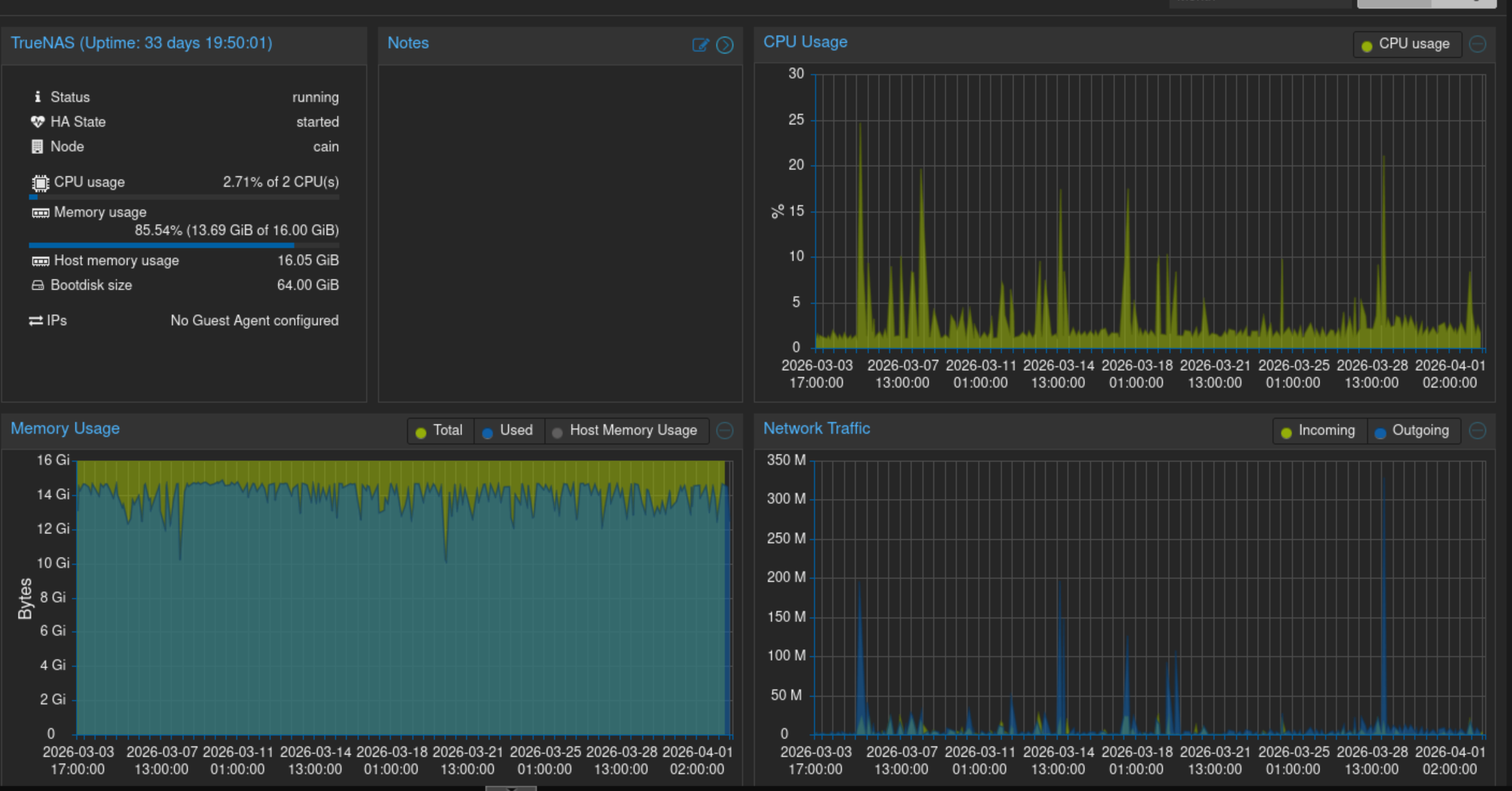 Proxmox dashboard: the TrueNAS SCALE VM.
The Storage Setup (PCIe Passthrough)
A learning moment during this setup was how to handle the hard drives. At first, I let Proxmox manage the drives, created virtual disks, and handed those to the TrueNAS VM. I quickly realised this was a terrible idea, because the system was doing double the work.
Because Proxmox was managing the physical drives and TrueNAS was running ZFS on top of the virtual drives, every single file operation was processed twice. This causes “write amplification” and wastes memory on double caching. Even worse, ZFS is designed to monitor the physical health of your drives, but with Proxmox acting as a middleman, TrueNAS was completely blind to the actual hardware.
To solve this, I used PCIe passthrough in Proxmox5 to hand complete control of the HBA card directly to the TrueNAS VM. Now TrueNAS has direct, raw access to the bare-metal drives, which removes the middleman and lets ZFS do what it does best.
Structuring the Data
Currently, my storage is organised into different datasets (which act like highly configurable super-folders within ZFS):
- Media dataset: dedicated to my streaming services.
- Cloud dataset: dedicated to file storage for my Nextcloud services.
By separating them into datasets rather than plain folders, I can apply different rules to each. For example, I can set up strict daily backup snapshots for my important cloud files without wasting space on backing up easily replaceable media files. I share these datasets over my internal virtual network with my application VM using NFS (Network File System), which is fast, lightweight and perfect for Linux-to-Linux communication. In the future, I am going to add a third, encrypted dataset for files I want to keep private.
VM 2: Debian (The Application Server)
After getting the storage online, I spun up my second VM to host my actual applications. I chose Debian as the guest OS. Debian is known for being a very stable Linux distribution, and it doesn’t have the bloat of desktop OSes, which makes it perfect for running server apps.
Resource allocation: Since this VM does all the heavy lifting for my active services, I gave it 10 CPU cores and 24GB of RAM.
Security Choices
VM vs. LXC: You might be wondering: if I’m just running containers, why use a heavy VM instead of Proxmox’s built-in LXC (Linux Containers)? As I mentioned in the terminology section, VMs offer a much stronger, hardware-level security boundary. Several of the services on this Debian machine will be exposed to the public internet. I wanted to make sure that if a hacker somehow compromises a public-facing container, they are trapped inside the Debian VM and cannot easily break out to the Proxmox host or my private TrueNAS data.
Right now, I run all my services on this single Debian VM and manage them with Portainer. However, my roadmap includes migrating to Kubernetes (K8s). Once I do, I will split this into two separate VMs: one exclusively for public-facing services, and another, completely locked down, for private services.
The Transcoding Hiccup (Hardware Acceleration)
During the first week of running my services, I ran into a major issue: whenever I streamed and transcoded media through Jellyfin, my Debian VM’s CPU cores spiked to 100%.
This was baffling, because my server runs an Intel i5-13500. That processor is an absolute powerhouse and should easily handle multiple concurrent 4K transcodes. The culprit? Software transcoding. Because Debian was running in a virtual machine, it didn’t have access to the graphics processor inside the Intel chip, so it was brute-forcing the video transcoding with raw CPU power.
To fix this, I had to configure PCI passthrough in Proxmox once again, this time passing the Intel integrated GPU (iGPU) directly to the Debian VM. With Jellyfin able to use Intel QuickSync (the hardware video encoder inside the iGPU), my CPU usage dropped to near zero during playback. It took a lot of tinkering, but the performance gain was incredible.
(Note: if you look at my Proxmox graphs and see occasional CPU spikes, don’t worry: that is just an “intro skipper” plugin running in the background, analysing my media so I can skip TV show intros!)
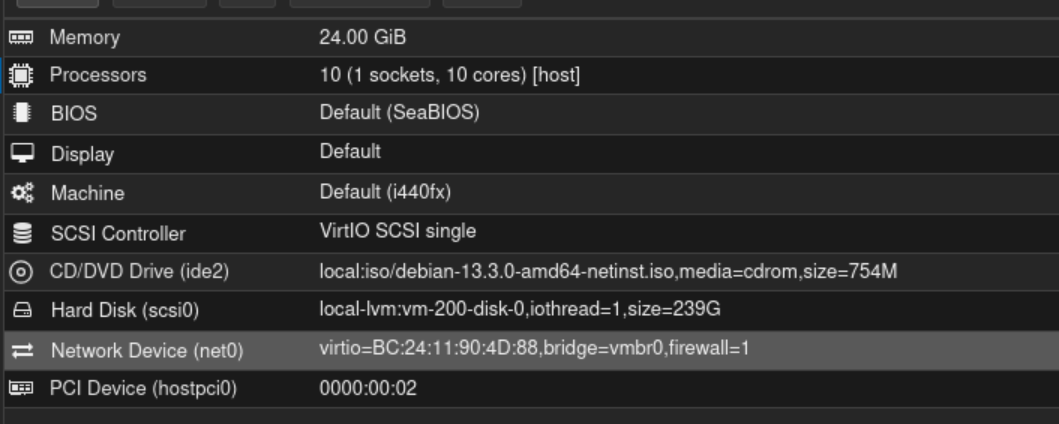 Debian VM configuration in Proxmox.
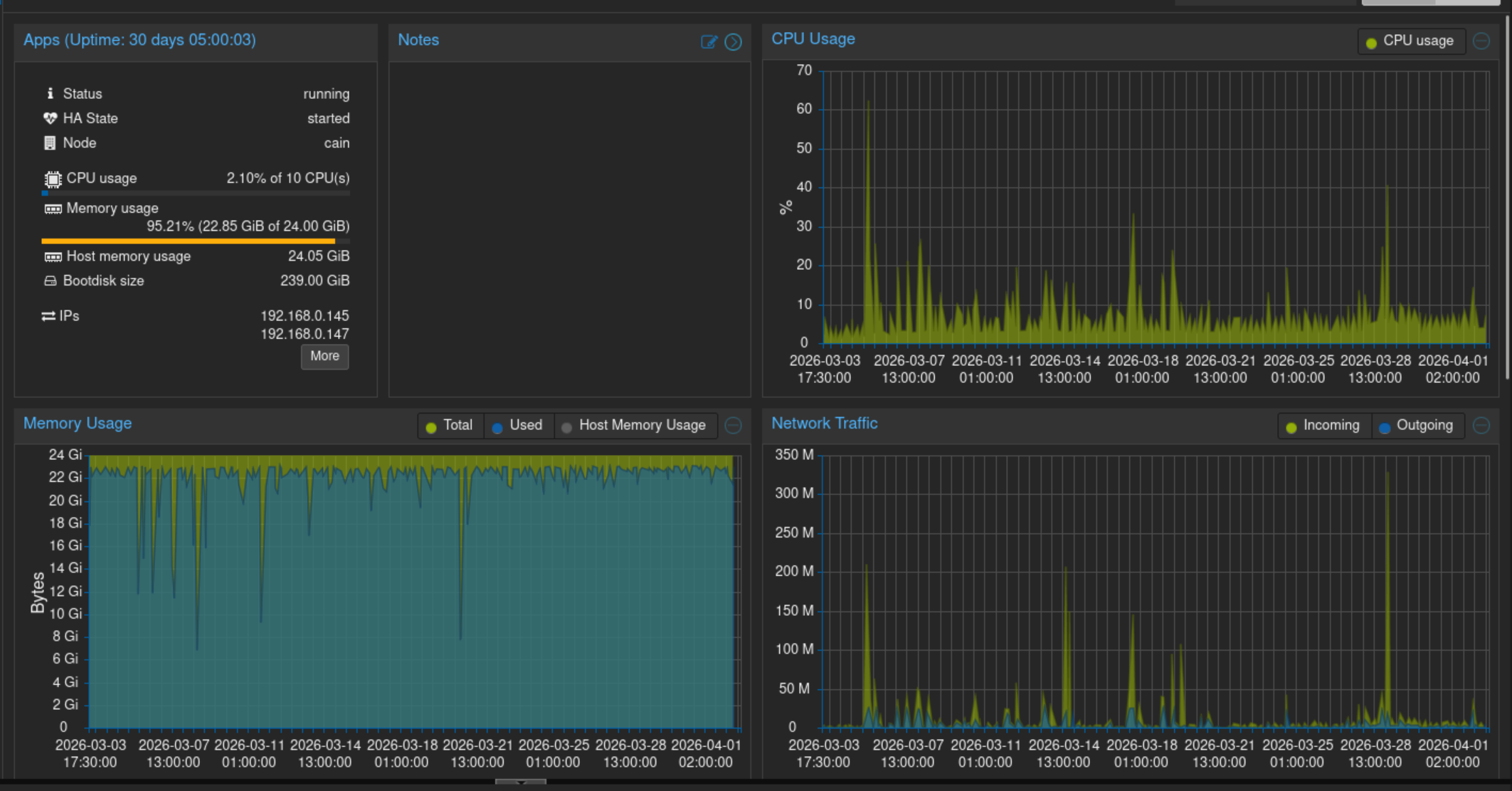 Proxmox dashboard: the Debian VM.
Wrapping Up
This post ended up a lot longer than I initially thought! I will end it here, but I plan to write dedicated posts about my container setup and, hopefully soon, my Kubernetes migration.
Thanks for reading. If you want to learn more about operating systems and virtualisation, I highly recommend these resources:
- The operating systems course by Prof. Frank Piessens at KU Leuven, which is where most of my foundation in operating systems comes from.
- Operating Systems: Three Easy Pieces by Remzi H. Arpaci-Dusseau and Andrea C. Arpaci-Dusseau1. The book is free to read online, and I recommend checking it out.
1. Remzi H. Arpaci-Dusseau and Andrea C. Arpaci-Dusseau. Operating Systems: Three Easy Pieces. pages.cs.wisc.edu/~remzi/OSTEP/ ↩︎ ↩︎
2. VMware. What is a Virtual Machine? vmware.com ↩︎
3. Docker Inc. What is a Container? docker.com ↩︎
4. TrueNAS. Yes, You Can Virtualize TrueNAS. truenas.com ↩︎
5. Proxmox. PCI Passthrough. pve.proxmox.com ↩︎